
Workspace Tabs & Split Panes
BeadSpec uses an IDE-style workspace where issue detail panels open as tabs. You can split the workspace into multiple panes to view several issues side-by-side.
Tabs
Clicking an issue opens it as a preview tab (italic title). Preview tabs are ephemeral — opening another issue replaces the preview. To keep a tab open, press Enter on the focused issue or double-click the tab to pin it. Pinned tabs persist until you close them.
Tab context menu (right-click a tab):
- Close
- Close others
- Close to the right
- Close all
Splitting panes
| Action | Shortcut |
|---|---|
| Split right | ⌘\ / Ctrl+\ |
| Split down | ⌘⇧\ / Ctrl+Shift+\ |
You can also split by dragging a tab to the edge of a pane — a blue edge-drop zone appears when you hover near the left, right, top, or bottom border. Drop the tab on an edge to create a new split in that direction.
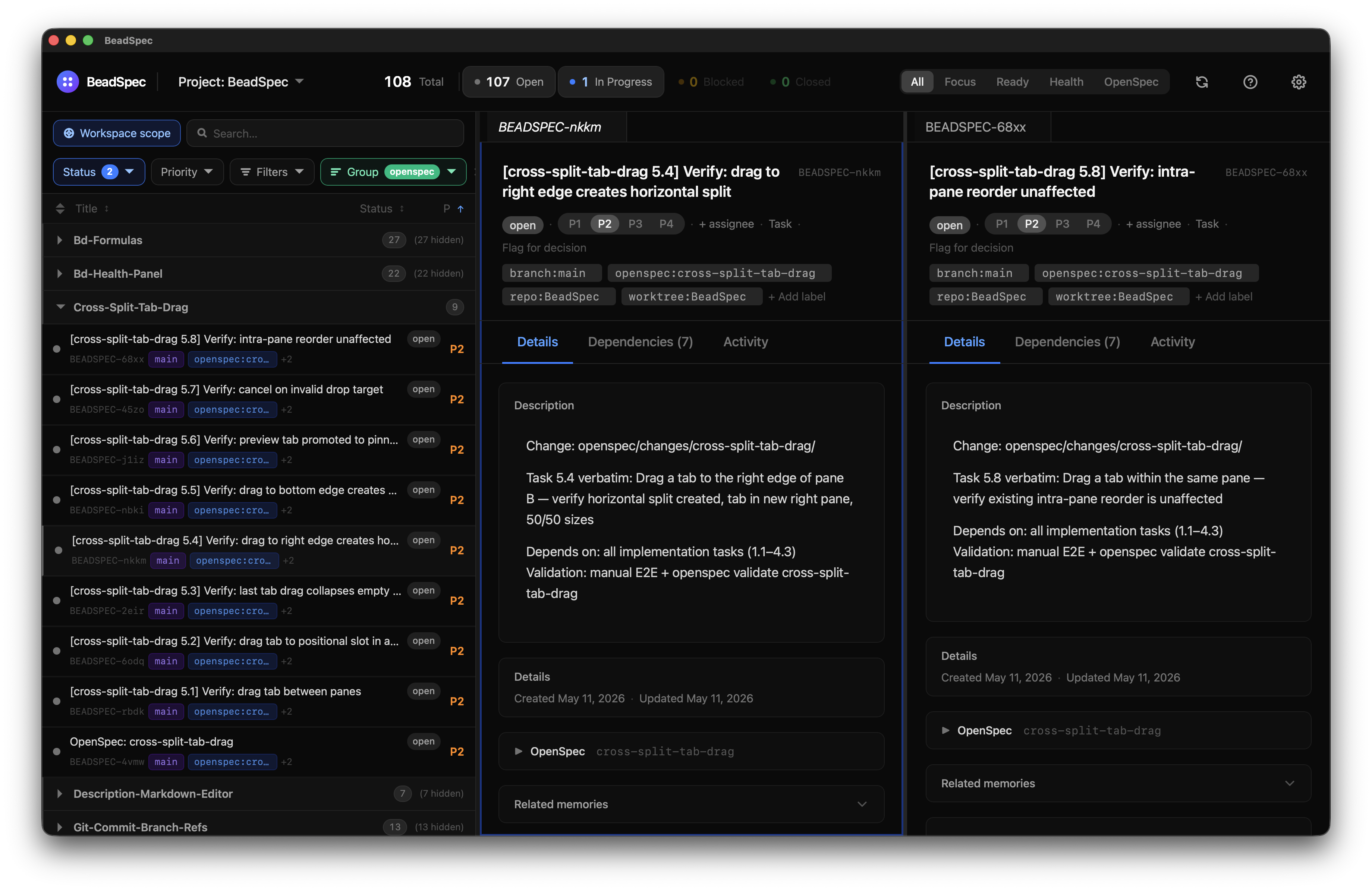
To close a pane, close all its tabs.
Navigating tabs
| Action | Shortcut |
|---|---|
| Next tab | Ctrl+Tab |
| Previous tab | Ctrl+Shift+Tab |
| Jump to tab N | ⌘1–⌘9 / Ctrl+1–Ctrl+9 |
| Close active tab | ⌘W / Ctrl+W |
| Reopen last closed tab | ⌘⇧T / Ctrl+Shift+T |
OpenSpec doc tabs
When OpenSpec is enabled, change artifacts (proposal, spec, design, tasks) open as read-only doc tabs directly in the workspace — no file browser needed.
Persistence
Your workspace layout (which panes exist and their relative sizes) is saved automatically to layout.json in the app's config directory. It is restored when you reopen BeadSpec.